I've been running 3840x2160 on the 23.8" Dell UP2414Q for the past month, and I couldn't be more pleased. Well, I could if I had it running at 60 Hz rather than 30 Hz, but having twice the PPI is worth the cut in the frame rate to me without question. I'm using the open source Intel drivers and the on-die GPU of my i7-4770K, and everything works out of the box at 30 Hz. Patches to get things at 60 Hz are in the works, but it's pretty complicated because the software needs to treat the display as two separate 1920x2160 displays due to limitations in the DisplayPort spec.
My desktop is where I spend the most time, yet it was the last remaining device I use where there were visible, ugly, distracting pixels everywhere. Now I never see pixels in my daily life, and reading and writing on my desktop have become significantly more pleasant. I highly recommend switching to a high-DPI monitor for anyone who spends much time on the computer (which is probably almost everyone here).
Oh, most software works just fine once I manually set the DPI in KDE's system settings. Upgrading to Plasma 5, the only software I use that isn't scaled properly is Chrome. Apparently they're working on it, but I only use Chrome for Netflix, and it's not too bad having tiny browser tabs for that one use.
Having a poorer eyesight is not going to make fonts comprised of ten or so square pixels (in a direction) a bigger joy to read. Reading off a low DPI display is not only slower, but it also tires out your eyes faster.
Ah, but having a 30+" screen a few feet from your face and upping the font size in fact does help. It's all about the distance, not about the number of pixels or the font size.
So the ideal (for me) is a large high res monitor sitting 3 or more feet away from me. The first hint you're on this path is when your arms start to be too short for reading books and when you are 100% sure that the gray squiggles on that chip used to have meaning.
Even before eyesight problems, it's recommended to have a screen at least at 65cm to avoid forcing eyes to accomodate, which is more or less our arm's length. iPhones are a pleague for eyesight, tablets are slightly better (except that we read them longer) and a huge screen, far away in the distance of the desktop is certainly a good solution.
The optimal viewing distance for reading is called the Harmon Distance. It's normally the distance from your knuckles to your elbow. Of course, vision problems and aging can require adjustments, but that's a good starting place.
> The optimal viewing distance for reading is called the Harmon Distance.
I’m not an expert here (I had to look up the Harmon Distance), but from what I understand from other reading about eye strain, this should be rephrased as:
“Reading gets less comfortable if the material is any closer than the Harmon Distance, with some variation depending on age and individual differences between people.”
In particular, there are two factors that make focusing at close distance uncomfortable: (1) you need to flex the ciliary muscles to focus the lens (this is called “accommodation”), and (2) you need to flex the medial rectus muscles to rotate the eyes inward to point at the same spot (this is called “convergence”).
Both sets of muscles start getting strained if you look at a very close object for a long time with no breaks.
Looking at further away objects, even all the way out to the horizon, isn’t really a problem though.
Interesting. I've been playing a bit with the Oculus Rift DK2, and if I understand things correctly[1], if/when they up the resolution one more "level" beyond the DK2, it should actually be possible to use for many kinds of work. UI design people will need to realize that mile-high letters on the horizon are better than thin lettering close to the head, first (I'm looking at you, Elite:Dangerous docking bulletin board etc).
No anchors in the page, I'm referring to: "Will the Oculus Rift cause eye strain after extended use?
The Oculus Rift causes very little eye strain, particularly compared to other standard displays or headmounts.
Normally, when you take a break from using a monitor or TV, the idea is to give your eyes a chance to focus and converge on a distant plane. This is a natural position of rest for your eyes.
With the Oculus Rift, your eyes are actually focused and converged in the distance at all times. It’s a pretty neat optical feature."
I think a large screen with large text at a greater distance is far more comfortable. Is there a good source for any reason why closer would be better?
Personally, I wouldn't run at 30Hz if someone paid me for it. And you don't have to either, because 60Hz support for your GPU is available (from kernel 3.17 best I can tell). You may have to enable DP1.2 or MST in your monitor settings to use it.
This, is a really important point. LCDs are NOT CRTs. So it isn't that the top left pixel of the screen is getting dimmer and dimmer while the CRT is painting lower pixels, on an LCD it is simply not changing.
What "30Hz" means in LCD terms is that if you go to change a pixel, the fastest you can do that is once every 33 mS but during the whole time it isn't changed, it stays the same intensity.
Basic desktop usage is unbearable at 30fps. Just dragging windows around you have to insert a deliberate pause to make sure the pointer is really where you want it to be because the screen is updating so slowly. Flicker is not the problem, slow screen updates are.
That is completely different from my experience; I think you must have another problem besides the 30 fps frame rate. Perhaps your machine is just having trouble pushing that many pixels? On my machine, animations are just slightly, subtly choppy -- like Android used to be before all the "butter." But there's still very much the sense of instant responsiveness.
I'm pretty sure I mouse as quickly as anybody. It's just that the difference between 17 ms per frame and 33 ms per frame on my system only affects the smoothness of animations. There's no perceptible lag no matter how quickly I move things around.
To add one more data point, I usually set my mouse sensitivity to maximum (people usually complain about how sensitive my mouse is when they borrow my computer), and while 30fps is fine for everything else, it's unbearable to me when mousing.
I just did a test: Over 5 seconds I moved my mouse to the top of my monitor and back down 15 times, which works out to 12000 pixels per second, or 396 pixels per frame - which seems about right for how far the mouse seems to jump per frame. For comparison, Chrome's Close Tab button is 15x15 pixels, and HN's upvote button is 8x7 pixels. Framerate really is the limiting factor for how long it takes me to move my mouse onto the kinds of click targets common in computers.
Another test: it takes around 6 seconds to close 7 tabs with a mouse in Chrome in 30fps, and 4 seconds to close the tabs in Chrome in 60fps.
So I think I've pinpointed the exact problem. There are two parts to moving a cursor to a click target: quickly moving the cursor in the target's general direction, and then slowly moving to its exact position. Both are much more unpleasant in 30fps.
Quickly moving in the target's general direction: it's a lot easier to track a 10x20 pixel cursor when it's jumping 150 pixels per frame than if it's jumping 300 pixels per frame. (These are my own numbers, judging by people's reactions to my mouse sensitivity settings, it's likely yours would be lower.)
Slowly moving to the target's exact position: if the click target is 8x7 pixels like HN's upvote button, I can't move any faster than 2-3 pixels per frame, which is obviously half as fast in 30fps as in 60fps.
Well, if you mouse that fast then your use-case is similar to the aforementioned twitch-based FPS games.
> There are two parts to moving a cursor to a click target: quickly moving the cursor in the target's general direction, and then slowly moving to its exact position
This is a pretty basic usability issue and one of the reasons we put clickable things on the edge of the screen if we can.
Monitors with 40ms of input lag used to be commonplace and regarded as completely usable for non-gaming purposes. The extra input lag on a modern monitor that comes from running at 30Hz instead of 60Hz shouldn't be a huge problem, though depending on how much input lag there is due to other sources it might be at least noticeable.
Yes there is, you just pointed it out. There 16-17 ms of extra lag compared to a typical monitor. When I stop moving my mouse, I have to wait up to 33 before I can see where it actually is. That is easily noticeable. Stick a bunch of people with 30Hz monitors and watch their misclick rate jump.
Can confirm, I am running a UP2414Q @ 30 Hz because my 2013 13" MBPr does not support 4k at 60 Hz and it is pretty bad. I am planning on replacing the laptop soon. Otherwise the screen is great and non-4k 24" screens look terrible to my eyes now.
Dragging windows does not constitute my basic desktop usage. I probably drag or resize a window at most once per day, and I'm not even using a tiling or significantly keyboard-driven window manager, it's just stock OS X.
>Dragging windows does not constitute my basic desktop usage
Fair enough, but it does for most people. The claim I was disagreeing with is that >30fps only matters for action games. It is noticeable for most tasks that use a mouse.
I was able to get 60 Hz by simply enabling DP1.2 on the monitor, but then I had two virtual displays, which was quite annoying. The patches to make the whole stack properly support this sort of monitor are not quite there last I checked (a few weeks ago). Dave Airlie, who's responsible for most of the work on this at all levels (from the kernel through through the window manager) has things mostly working, but it's not ready for prime time. He ended up giving up on doing everything entirely in the kernel as he had originally tried, so now everything up the stack to the window manager needs patching. He has experimental support in GNOME. I may attempt stretching myself and seeing if I can get similar changes into kwin while I'm on winter break, but I've found 30 Hz to be entirely bearable; most of the time I don't even notice.
I'm pretty sure I came across information that up-to-date Macs can do all the necessary wrangling to make it work. If I planned to buy one and connect it to a Mac, I'd do some Googling to verify that, though.
I’m really impressed by the Dell UP2414Q. I’d highly recommend it over just about any other external monitor. Color is consistent across the front, and quite accurate. It’s pretty bright with good contrast. And the high resolution is just stunning.
The only computer display I’m more impressed with at the moment is the 5k “retina” iMac display.
I'm not necessarily a good judge of monitor color quality and accuracy, but to my eye, it's fantastic. I'm normally right in front of it, but my partner is off to the side when we watch something on Netflix, and that angle doesn't seem to adversely affect color.
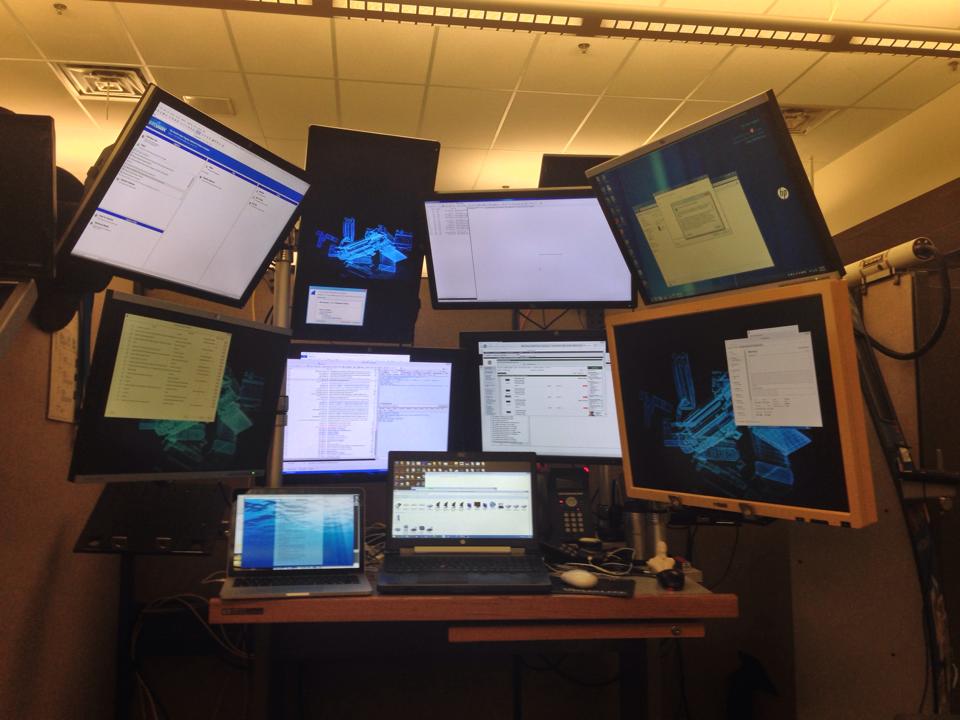
Hats off for trying this in Linux. I gave up on that path a long time ago and am running nine monitors with a Windows 8.1 base OS, utilizing DisplayLink USB docs in combination with the DVI out on my main doc to drive the 2560x1600 30" display (the yellow one) with all others running at 1920x1200 from DisplayLink. I then run Linux in a VM, all from a laptop whith 32GB of ram and three built in SSD's giving me a bit more than 2TB of storage.
Interestingly there appears to be an eight monitor limit total when using DisplayLink for the OS so the ninth monitor is driven from its own DisplayLink doc which I've directly hardware associated with a VM. Of course because the host OS doesn't know about that monitor I also need a second mouse so I can access it. Here's the latest photo of my setup:
Honest question, do you feel a little ridiculous with that setup? I'm a coder and have 2x24" monitors, and found that to be borderline ridiculous with neck strain, thus the reason I'm going 27". But unless you're running security at a place of business or something with 50 security cams, I can't imagine what you're doing that requires a wall of monitors?
Our philosophy in the office is that alt-tab is for suckers. While my setup is the most over the top we have three other people with five monitors or more. We are all security researchers and find the configuration saves a bunch of time in reviews. As an example, I can associate a MitM proxy like the Burpsuite or Fiddler 2 with the server side application which might communicate to web clients as well as to additional web services behind the scenes. That takes up one monitor, typically the one at the far top left. Under that monitor I can then associate another MitM proxy with the client. I can then run the client from my laptop display. If I'm working on a fat client, on the 30" I'll then run Wireshark which will effectively be watching the client. On another monitor I can run sysinternal tools. What remains I use for writing code necessary for the review, running additional tools like Metasploit, e-mail, chat, and research. I arrange my workspace for the task at hand. On a daily basis do I use all nine? No.
Interestingly enough, with this sort of setup it's pretty easy to visually see what's happening when going after an application. Before going to the monitor extreme I'd constantly alt-tab between my monitoring & exploit tools with every action. Now I can run an action and see the results within one workspace. Of course there is a massive downside. It makes competing in CTFs a pain in the butt as I can't drag that setup with me to physical events.
The moment I use more than 1 screen, I find alt-tab to be cumbersome. I find that in a GUI environment, having your mouse autofocus on the window it's hovering over is far easier than using alt-tab. Especially when you have multiple windows open, cylcing to the correct window using alt-tab is usually slower than moving the mouse over the window.
> Our philosophy in the office is that alt-tab is for suckers.
Which is why I've partly switched from Unity to xmonad (a tiling window manager). Dual monitors is nice to have for me, but the real boon was to have 9 (or 10?) easily accessible workspaces, which allows me to only have to worry about a handful or less windows in each workspace. Unity also have workspaces, but they suck (at least out of the box).
I can't go back from three monitors (currently running 24" displays):
  Left     Portrait, Terminator with two horizontal splits
  Centre   Landscape, Vim with a vertical split, usually have NERDTree open
  Right    Portrait or landscape, browser and/or documentation
I find if I don't have all of those constantly open I can miss stuff, and having them all squished onto a single monitor means I'm not able to display enough information to cover my needs.
I just got my fourth monitor. Two of them are old shitty 900p screens though. My main displays are my new 144hz 24" 1080p panel ($160 black friday sale) a 21.5" 1080p panel over hdmi, and the two shitty old panels I got from clients throwing out their old screens.
Usually the layout is IDE on the main window, docs on the second screen, IRC, git, and github on the third / fourth.
Back in the day, I was much happier with two 4:3/5:4 monitors than I am with two 16:9 monitors, as you say the neck strain... or wasted space is a bit ridiculous. I prefer two squarish monitors to 2x widescreens _or_ giant screens.
If you're getting neck strain from using 2 monitors try moving them further away. Ideally you want both screens in your front facing FOV, with only your eyes doing the moving.
Aaaand this is why I switched to first a tiling WM, and then to OSX for its intuitive 4 finger swipe workspaces.
Till that switch I was a multi monitor junkie, but after 3 monitors it starts getting bad for your neck, bad for your eyes (with all those monitor backlights burning your retinas) and you also need humongous desk setups.
Nowadays it's just one big monitor and 4 finger swipes.
I work both on triple monitor and single monitor+workspace setups and still prefer the triple monitor for a single reason: you cannot put workspaces next to each other and get an overview of multiple windows at the same time..
Just saying it might work for you, but it's by no means a proper replacement for all of us
> you cannot put workspaces next to each other and get an overview of multiple windows at the same time
While I personally prefer a single-monitor no-workspace setup, there do exist several window managers that let you independently choose workspaces for different monitors rather than having each workspace specify a layout for all monitors. For instance, the window manager "awesome" uses tags (primarily 1-9) for windows, and lets you say "this monitor should display 1, and this one should show 2-3".
that's what I was thinking, I often throw a frame onto the left or right monitor.....having a single monitor would mean I'm adjusting positions all the time?
Synergy is amazing. It's hard to explain to people, but as soon as they get somebody to set it up you can watch their faces the first time they move their mouse over to another machine and they go "oh"..."ooOOOHHH" and the light clicks on.
They've recently moved to a paid model, but some older free versions are still around.
Video is great! Still it's weird, I can even show somebody a setup with Synergy running, and until the moment they move their own mouse cursor over that hard boundary at the end of their monitor, it never seems to click...and weirdly people are kind of resistant to it.
I almost think the next Tron movie needs a character named Synergy that bashes down arbitrary walls between systems to really get the idea out there ;)
I think the video looks great. It conveys the purpose very clearly for those who don't even know that they need something like that. Although it's not my cup of tea, I think the music is very current in this context. Nice work!
Hehehe. I once worked in an agency, where I commandeered three iMacs, and used Synergy (it may have been a similar application mind you) to use them as "monitors". Each iMac was for a different purpose :P
xdmx does slightly different thing, it allows one to build X display that uses another X displays as it's screens (everything goes through the xmdx server and last time I tried it it was incredibly slow, as in significantly slower than using normal X11 over the same network).
Wow. That is a pretty crazy setup. I would worry about neck problems with the position of the top row. How long have you worked with this setup? Also what make/model/spec is the laptop you run it all from?
It's taken a few years to build up to this. To mitigate neck pain I:
1) Have set my chair so that it rocks as far back as possible with little force.
2) Sit directly across from the gym and try to visit it twice a day for at least two 15 minute HIIT cardio / body weight workout. I do lots of pull-ups, archers, and have been working up to the iron cross.
3) Only use the upper deck monitors for security reviews where I need "eyes on" resulting actions. I don't use them on a daily basis.
Truly, if this works for you, then all the best. But we have lots of people at my organization programming, analyzing big data, and troubleshooting operations, and never have I ever heard or seen anyone wish for more than four monitors (two is the standard). I feel the physical issues, the problems with space (if everyone wanted that) and the capital investment all point to the use of workspaces.
This setup makes me think of this, which has been a joke in our circle for some time.
Not when you're trying to monitor a lot of data. Even on my dual monitor setup, One monitor has 4 terminal windows for informational purposes. It would take longer to move to another workspace than to just simply take a quick glance to the left.
Exactly! Over the years more than a few people have called me crazy for having a setup like this because at the end of the day they try to picture themselves using this sort of solution. The fact is, if you aren't trying to keep track of a large number of things as near real time as you can, nine monitors is absolutely absurd. In the past you'd only find this type of setup on a stock brokers desk; however, when you consider what's required from even a moderately scoped pen-test, going to this point makes a lot of sense from a time perspective. I've greatly reduced the amount of duplicate work because I can see the entire result of an action in real time while sparing myself from switching between tasks to work on code & exploits.
I'd go further and say don't berate someone's tools full stop.
They're not making you use it. They're not making you pay for it. Why do you care at all? What does it have to do with you? Why do you think they want your opinion at all?
It is utterly pointless and expensive to have an entire monitor dedicated to an application.
A basic monitor is a couple of hundred dollars. That's only a few hours work for a $100k employee - if that setup makes them more efficient, then it's easily worth the money.
Yeah, because you never, ever have to reference multiple documents/apps/consoles at the same time. Why haven't I thought of the solution of simply constantly switching a monitor to many different views 10-20 times a minute?
It's the same, except instead of turning your head to see the other monitor, have your fingers, which are presumably already on the keyboard, hit ctrl-alt-direction.
Just needs one really good monitor. Requires no special monitor mounts. Has worked this well for 15 solid years. 15 years! You could have been doing what you do now, but slightly better, 15 years ago.
So at the moment I am working on one screen while on the other I have my perforce instance syncing the whole repo - I want to start something as soon as that sync is done. Right now I can tell when it's done because the sync window is in my peripheral vision, on the other monitor. In your setup I would need to switch between workspaces every 30 seconds to see if it's done - how is that not giving you a headache?
Also - one monitor runs my application, while another feeds me the console output - switching workspaces to see both? Looks like a lot of hassle. And monitors are cheap - if I had more space on my desk I would be super happy to have 3+ monitors,but I have to work with only 3 at once.
I switch back and forth pretty quickly - the screens just flick left or right. Every 10-ish seconds, for just a second, if I care about something going on in the other workspace.
Switching is faster on linux than on other systems I expect.
This is a typical response from someone who doesn't understand what's necessary to manage workflows requiring the real-time monitoring and interpretation of complex data across system components. I'm more than familiar with multiple workspaces from my HP-UX CDE days in the early 90's to more than a decades use of LiteStep. You'll also note that next to the laptop driving all those monitors is a Retina MacBook pro in which I utilize multiple workspaces. Honestly, it's the only thing that allows me to do my job when not sitting in front of a multi-monitor environment, but it's much, much slower because of the need to swipe across workspaces and requires a fair amount of processing overhead in my mind to keep everything in context.
Alt-tabbery and workspace swapping are more likely to generate mental confusion and delay than having things simultaneously visible side by side, surely.
I don't mean to be "that guy"... because this is, of course, about linux running 4k.
But much of the discussion seems to be around what the point is, whether it's useful, and so on.
As someone who's been using one of the new 5k iMacs since it came out (so that's 5120x2880 in a 26" display)... let me add a bit, hopefully without sounding like an apple fanboy.
First - running it at actual 5k, rather than at 3200 or 2560 HiDPI, is crystal clear, amazingly sharp, but too small at this size. With a 40" display it would be perfect, I imagine.
At full 5k, you can fit an amazing amount of stuff on a single screen, and it's handy for certain short troubleshooting sessions - but stuff can be so small it's straining. The stuff is still crisp though, if you can manage to focus on it. The detail is there. 12 point fonts are barely readable to my 40 year old eyes unless I get closer.
3k is just fine, and 2k is what you'd expect - but both are using HiDPI rendering and you get stunningly crisp fonts and detailed images and whatnot.
I wouldn't trade it for anything, even if I don't run in 5k all day long.
Speaking of screen size, having used it i confirm that 39-40" is what i find the minimum acceptable size for 4K if you are not running in HiDPI mode. It corresponds to 1080p at 20" which (which to my 50y eyes is almost below the threshold of what i can see).
I have tried 4K@30Hz using HDMI on five different TVs (not monitors): Seiki 39" US, Seiki 39" UK (US and UK modes are different), Hisense 42K680, Samsung UE40HU6900DX, LG 40UB800 (the latter three are in Italy and seem available across europe).
In all cases the additional display lag wrt my retina MBpro screen (measured with the small HTML/JS at the end) was huge, in the 130-230ms range, i.e. 4-7 frames. As a comparison, even the low end 1080p TVs i tried (at 60Hz) only gave 0-16ms additional lag, i.e. one frame.
The problem is not 30Hz vs 60Hz, but a video pipeline which is too deep, and cannot be shortened in any of the models i tried (even the models that have a "gaming" mode disable that control when running at 4k).
Note that even at 30Hz one frame is only 33ms so anything more than 66ms indicates excessive pipeline depth.
Based on my measurements, I think that at the moment the chipset that do 4k (upscaler etc.) are still buggy/immature in terms of features, and probably we need to wait the next generationof silicon to get 4K TVs that can be used as monitors.
I have become used to the 130ms lag but it is not pleasant.
Note that the Acer Chromebook C720 ($199) can drive the screen at 4K through the HDMI port. I had no problem with FreeBSD using high end nvidia cards (GT640 and GT750), whereas lower model seem unable to use pixel clocks above 165 MHz (you need about 290 MHz to run at 4k).
<!DOCTYPE html><html><head><script>
Object.prototype.d = function(l) {
return (this + Math.pow(10,l)).toString().substring(1, l+1) }
function g(x) { return document.getElementById(x); }
function clock() {
var t=new Date();
g('txt').innerHTML=t.getSeconds().d(2)+'.'+t.getMilliseconds().d(3);
setTimeout(clock,1);
}
</script></head>
<body onload="clock()">
Set PC to mirror screens, take a snapshot with a camera, compare times<br/>
<div id="txt" style="font-size: 120px;"></div>
</body></html>
    displaylag.html:5 Uncaught SyntaxError: Unexpected token function

    displaylag.html:10 Uncaught ReferenceError: clock is not defined
Wasn't able to run that page you put at the end of your comment on Chrome 39.0.2171.95. Am I missing something? Here's a codepen: http://codepen.io/pen/yyOxXQ
I looked into this setup but it gets pretty ridiculous if you want to do any gaming. You want 4k @ 60hz with 4:4:4 color sampling at a reasonable <40" but it soon begins to feel like you're hunting a rare animal. With only hints and whispers strewn throughout a dark abyss of forums threads and amazon reviews. The kind of places where people put AMD driver revisions in their signatures. I don't think we're quite there yet.
Can you get a 4k display and use it at its full resolution for everything but gaming, and then just switch to a lower resolution for gaming when you want the higher refresh rates?
I ran the Seiki 4K as a monitor for about a year. Overall the quality is fine however the 30hz and mouse lag make it less then optimal for anything other then static content. Even scrolling a page is not easy on the eyes.
However one should be careful when getting monitors with such huge resolution since they put more requirements on the GPU. For example if you want to play games in native, it will require dual GPU at least which is a very pricey overkill otherwise. Current video cards don't cope with such resolution well yet. That besides the fact that such monitors are very expensive on their own.
Also, ergonomics wise, for me personally 24-27" is a sweep spot. Anything larger than that becomes uncomfortable to use unless you place it in some distance.
> For example if you want to play games in native, it will require dual GPU at least which is a very pricey overkill otherwise. Current video cards don't cope with such resolution well yet.
Can't you just set the games to a lower resolution? Wouldn't that lower the GPU load?
You can, but for LCD monitors non native resolution usually degrades image quality. And basically it means that for that scenario you aren't using what you paid for. So it's something to consider when buying it.
The Windows version of ATI's Catalyst driver has an option that permits you to use the GPU to scale less-than-native-resolution output to an attached LCD's native resolution. It makes video games a little bit fuzzy, but works better than the built-in LCD rescalers that I've seen.
Most desktop 4k monitors are being released at 28". That seems reasonable, albeit I do prefer the 24" ones with good DPI. Again, Windows continues to hold us back, because vendors don't want 250+ DPI on the desktop because Windows cannot handle it.
No, it's not a Windows problem. Actually Windows 8.1 has a pretty reasonable Hidpi support with infinetly adjustable scaling factor. I have my 28" 4k set to 175%, but I could also put it to 300% which would be ok for 250dpi.
Overall I get better results than with various linux desktop managers.
Win 8.1 also allows to set the dpi independently for each connected monitor. That's important when you connect a 4k screen to an average notebook or a tablet to a TV.
The main problems are the applications (Steam - I'm looking at you) which were not written to support a higher DPI. Some of them will simply be lineary upscaled by Windows which causes bluriness but at least makes them usable. However other ones will have tiny user interfaces. But with 150dpi they are at least still usable when you have to set them to non-scaling (100%).
I think it will still take some time until the problems are fully resolved. Most developers have no hidpi screens and therefore can't even see the problems they're supposed to fix.
I had to turn scaling off on my 1080p 15" laptop on 8.1. Too many applications that did scaling poorly, including some built-in applications.
On top of that, when an application that is doing scaling wrong launches an explorer window to pick a file, etc., if it's settings are wrong the file picker window will also have the same blurry text etc. as the parent application.
It is a Windows problem when 80% of your userbase is not using the version with high dpi support. Your mileage may vary with the accuracy of that site, but in general practice it should be well known that Windows 7 install base easily eclipses Windows 8 two or three fold. Hell, there are still almost as many XP installs as 8.
>It is a Windows problem when 80% of your userbase is not using the version with high dpi support.
But what's the percentage of the user base with high dpi monitors using the version with high dpi monitor support? It doesn't really matter if 80% of people running at 1366x768 can't support high dpi.
I'm sure if you're buying a 4k monitor, you're making sure you install an OS version that supports it.
> Win 8.1 also allows to set the dpi independently for each connected monitor. That's important when you connect a 4k screen to an average notebook or a tablet to a TV.
Yes, that's one of the biggest missing pieces in KDE so far. DPI changes universally, so you can't comfortably use monitors with drastically different resolutions in multiscreen setup because of that.
That's a video card question, not a monitor question.
That being said, this monitor supports 60Hz operation in SST with DisplayPort 1.2 so it should work cleaner than those first generation monitors that have to pretend that a QHD monitor is two monitors to work at 60Hz.
That includes VAT, and profiteering on limited supply. Expect the prices to be under $800.
And $800 is a nice compromise between $400 crappy TN panels and $3000 IPS panels. Myself, I prefer VA over IPS because the black levels are so much nicer.
> The myth I keep hearing is that you must go to larger fonts when scaling up to a 4K monitor. This is not exactly true. Do the math. If you double the screen resolution and at the same time you double the screen width, you have done absolutely nothing to the size of a pixel or the physical size of your fonts.
What the author seems to be missing here is that if you double your screen size you will likely put the screen at further viewing distance.
Even if you don't, pixels near the edge of a flat display will look smaller because they are further away from your eyes.
For example, for a 20 inch diagonal monitor at 10 inches distance, the corner pixels have about 0.7 times the angular extent of those in the center of the screen, or about half the solid angle.
Replace that by a 40" diagonal monitor at 10", and that factor drops to about 1:sqrt(5), or 1:5 in solid angle.
So, I guess you will need larger fonts, _if_ you keep your eyes in the same position on your larger monitor. There probably are publications on this in studies on airplane ergonomics.
He makes a point that he uses tiny fonts and that they work for his eyes. The photo of the screen just behind the keyboard is further evidence. I'm guessing it's at the same distance as his previous setup.
No one has mentioned that the author of the piece likes to leave his monitors on 24/7. I often see many monitors in offices left on overnight running a screensaver. Is there a good reason for this, or simply ignorance?
"The myth I keep hearing is that you must go to larger fonts when scaling up to a 4K monitor. This is not exactly true. Do the math. If you double the screen resolution and at the same time you double the screen width, you have done absolutely nothing to the size of a pixel or the physical size of your fonts."
Yeah but it's a 39" monitor... On your desk! Seriously, I'm all for the largest monitor and resolution and everything else, but there's a point where I'd argue it's just too much. I think a 39" monitor on your desk is crossing that line. I can't imagine the neck strain that's going to occur.
Instead of selling extended warranties, they need to start selling these with chiropractic insurance.
Full disclosure: I just went through several days of research on 1440p vs 4k. I went into it assuming I'd get a 4k monitor, but in the end, opted for the 1440p monitor because I refused to stick a 39" monitor on my desk, and the 28" 4k would require DPI scaling and all that mess.
I'd get a 4k for gaming, assuming I had a rig that could power games at that resolution. Otherwise, I'm happy with my decision to get the Asus PB278Q 1440p monitor.
Maybe a large monitor should be like a large desk. You only work on what's in front of you but with a glance around you quickly see everything that needs your attention. With a small monitor or small desk, things get stacked and buried, hidden in drawers/folders etc.
> I can't imagine the neck strain that's going to occur.
I was wondering about this too and the impact on your eyes. For a 39" monitor it's recommended you sit over 5ft away, so the optimal desk environment for such a large monitor will be interesting.
Too close and the pixels are going to be "big" and too far away and the pixels are going to be invisible.
For example, at 15 feet away the high res would be a waste of money for that screen size, you can't see better than 480 lines at that range.
Extending my arm, I seem to be around 2.5 feet from this screen. Doing the math, higher that 4K at 40 inch screen would be visibly noticeable although its kind of borderline, so 4K should be good enough.
DPI would be more of an issue than screen size, I think. I've got 2 portrait (1200x1920) 24" monitors side by side, one in front of me and one to the right: 28" wide, 22" high, for a 35" diagonal. It looks like this: http://quadruple-a.com/2_portrait_monitors.jpg
I find this works well, and isn't too overpowering. A 35"x23" arrangement would surely be no problem in terms of overall size - but you would be squeezing 1.8x as many pixels into rather less than 1.8x the space. Not sure my favourite 6x13 xterm font would look so good any more...
(I also tried adding a 3rd identical monitor on the left (total 42" wide, 22" high, 47" diagonal), and this looked perfectly manageable. So I'd probably be able to handle a 50" monitor... maybe. 3 monitors all lined up was starting to look a bit intimidating. And in the end Linux wouldn't display anything on the 3rd monitor anyway, so what it would actually be like in practice, I couldn't say.)
A 39 inch monitor is not nearly as bad as it sounds.
I am currently using 3 1080p monitors in portrait[0], a setup that I like quite a lot. Here are some measurements:
    Width :  39 inches
    Height:  22 inches

    Avg. distance from eyes to monitor:
        22 inches

    Maximum head movement to look left/right edge of monitors:
        40 degrees

    Estimated maximum head movement during use:
        20 degrees
It's a very comfortable setup, and allows for a huge amount of screen real-estate[1]. However, I will say that I use it in a somewhat "different" way compared to other setups. The middle monitor is the main workspace, and is where windows with active work on them go. The left and right monitors hold the 4+ windows with non-active or asynchronous information, like chat windows, documentation, comparison code windows, etc.
I've been using a SE39UY04 under Linux for the past year at about a two foot viewing distance, and it's no strain to use. I'm slightly elevated to its center because I use a stationary bike as my chair, which also allows me to lean in or out as I need. It is pretty big, so I'd probably hate using it if I had to sit in a regular chair all day, too though.
Also, since most major Linux distros handle HiDPI scaling for you out of the box, I only did minor tweaking for text in dconf. Pretty painless overall, physically and literally.
When I game at 1080_120 or 1440_60, I do scoot back a little more out of habit, but it looks amazing close up. I have another 1080_60 TV the same size, and I have to sit across the room if I don't want to see the pixels. If I did get another monitor, it'd be a 22ish inch 1440_144 overclock. They seem pretty much ideal size, refresh, and DPI wise.
In principle at least, there's no reason why having a larger proportion of your field of view covered by the screen ought to make things worse. If fullscreening a document is going to make it uncomfortable to read, well, don't do that then. Now in practise not being able to just fullscreen things can be awkward, but that's a software problem with current OS GUIs, not a hardware issue. https://hackernews.hn/item?id=8634121
I think 40" is exactly right. I've been using a 30" monitor for 8 years now. At first it seemed overly large. Now I want one more column, and find 27" cramped when I have to use one of those.
I am concerned about throwing too much light at my eyes. That's why my next monitor will be one that has solid blacks and good contrast.
I'm not concerned about neck strain. I bet you're more likely to get neck strain holding your neck in the same place for 8 hours than you would
I have a late-2010 Macbook Air with the nVidia 320M, which can handle 2560x1440 over the mini-DP. I have the Acer B326HUL which was $399 on Black Friday. Seemed like a good compromise since driving 4K would mean a new laptop.
Compared to the 28" 1920x1200 monitor it replaced, I'm very pleased with the 32" 1440p.
I wonder if a bigger screen will make that difference for me. I've been using an 1920x1200 24" screen and that was nice, but for the past 12 months I've been fine with my 1366x768 12.4" laptop. Tough, I'm using a tiling window manager which makes a difference compared to others I guess.
> Before starting this project I was wondering how happy I would be with 30Hz updates. Well, at this point I have to say that the display appears solid at that update rate with no noticeable flicker whatsoever. Maybe if I was using this setup to watch sports videos this might be an issue, but for me, I'm finding this 30 Hz update rate to be quite satisfactory for workstation duty.
To explain this comment, flashing the 39" model to the 50" FW enables true 1080_120 display mode, as opposed to the stock FW's frame doubling.
2160 is limited to 30Hz, but that's hardly an issue for anything but games, most of which are better played in other display modes anyway. Besides, it doesn't make sense that someone who cared enough about hires gaming to buy a GPU beefy enough to run games at >30fps in 4k wouldn't just buy an appropriate monitor as well.
If you still have the screen, the ATSC_THTF_SY14343_ST2975C_CMI_V500dk1_P01_20140707 FW improves the apparent responsiveness of movements at 2160. It's still 30Hz, but feels closer to 50. Includes other improvements as well.




My desktop is where I spend the most time, yet it was the last remaining device I use where there were visible, ugly, distracting pixels everywhere. Now I never see pixels in my daily life, and reading and writing on my desktop have become significantly more pleasant. I highly recommend switching to a high-DPI monitor for anyone who spends much time on the computer (which is probably almost everyone here).
Oh, most software works just fine once I manually set the DPI in KDE's system settings. Upgrading to Plasma 5, the only software I use that isn't scaled properly is Chrome. Apparently they're working on it, but I only use Chrome for Netflix, and it's not too bad having tiny browser tabs for that one use.